Rearrange Your Writing#
Drag and drop in FoldNotes
Most editors make you select, cut, scroll, and paste just to move a paragraph. In FoldNotes, you grab it and drag it. Every line in your note has a drag handle — hover to reveal it, then move your content wherever it needs to go.
The magic is that FoldNotes understands your document's structure. Drag a heading, and the entire section follows. Drag a list item, and its sub-items come along. You're not moving lines of text — you're moving ideas.
The Drag Handle#
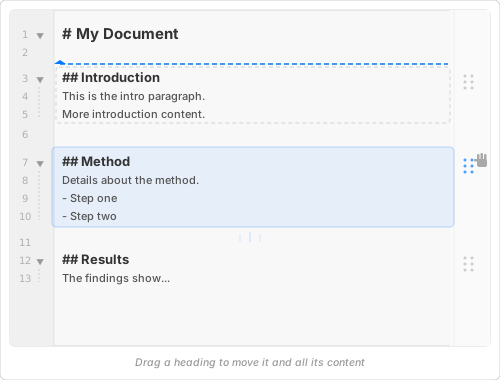
Every paragraph shows a drag handle ( ≡ ) in the right margin when you hover over it. Grab the handle, drag up or down, and drop where you see the blue insertion line.
flowchart LR
    A[Hover over a line] --> B[Grab the ≡ handle]
    B --> C[Drag to new position]
    C --> D[Drop on the blue line]
Every move is undoable — press Cmd+Z to put things back.
Moving a Heading Section#
This is where drag and drop really shines. When you drag a heading, everything that belongs to it comes along — body text, sub-headings, their content, all of it. FoldNotes knows that a ## heading owns everything until the next ## or #.
Before:
graph TD
    A["# My Essay"]
    B["## Conclusion"]
    B1["Wrapping up..."]
    C["## Introduction"]
    C1["It was a dark and stormy night..."]
    A --> B
    B --> B1
    B1 --> C
    C --> C1

    style B fill:#e8d44d,color:#000
    style B1 fill:#e8d44d,color:#000
Drag ## Conclusion (and its content moves with it) above ## Introduction:
After:
graph TD
    A["# My Essay"]
    C["## Introduction"]
    C1["It was a dark and stormy night..."]
    B["## Conclusion"]
    B1["Wrapping up..."]
    A --> C
    C --> C1
    C1 --> B
    B --> B1

    style B fill:#a8d8a8,color:#000
    style B1 fill:#a8d8a8,color:#000
If any sections within the heading are folded, that fold state is preserved through the move. You can rearrange chapters in a long document without ever unfolding them.
Reordering a List#
Drag individual list items to reorder them, or move them between lists. Sub-items stay with their parent.
Before:
graph TD
    A["- Pack bags"]
    B["- Book flights"]
    B1["  - Compare airlines"]
    B2["  - Check dates"]
    C["- Get passport"]

    style B fill:#e8d44d,color:#000
    style B1 fill:#e8d44d,color:#000
    style B2 fill:#e8d44d,color:#000
Drag - Book flights (with its sub-items) to the top:
After:
graph TD
    B["- Book flights"]
    B1["  - Compare airlines"]
    B2["  - Check dates"]
    A["- Pack bags"]
    C["- Get passport"]

    style B fill:#a8d8a8,color:#000
    style B1 fill:#a8d8a8,color:#000
    style B2 fill:#a8d8a8,color:#000
This works the same way for ordered lists, task lists, and nested block quotes.
Moving Code Blocks and Tables#
Code blocks and tables are treated as single units — you can't accidentally pull them apart.
- Code blocks — grab the drag handle on the opening
```fence to move the entire block (content and closing fence included) - Tables — grab the header row to relocate the entire table (header, separator, and all data rows)
Quick Reference#
| What you drag | What moves with it |
|---|---|
| A heading | All content until the next heading of the same or higher level |
| A list item with children | The item and all its indented sub-items |
| A plain paragraph | Just that paragraph |
| A code block fence | The entire code block as one unit |
| A table header | The entire table as one unit |
Dragging Notes, Not Just Paragraphs#
The notes list drags too. Drag notes onto a tag in the sidebar to move them from one tag to another — merging, nesting and re-parenting tags in one gesture — or onto Archived, Trash or Untagged. See Reorganising Tags by Drag and Drop.
Tips#
- Fold first, then drag — if you're reorganising a long document, fold your sections down to headings first. You can see the whole structure at a glance and drag sections into place.
- Undo is your friend — every drag is a single undo step. Experiment freely.
- iOS — the same drag handles appear on iPhone and iPad. Grab and drag to rearrange, just like on Mac.