Headings & Folding#
Headings are the backbone of a FoldNotes document. They define your note's structure and enable folding — the ability to collapse and expand sections.
Heading Syntax#
Use # characters at the start of a line, followed by a space:
You can also set heading levels with keyboard shortcuts: Cmd+1 through Cmd+5. Press Cmd+0 to convert back to plain text.
Folding#
FoldNotes supports two kinds of folding: heading-level folding for headings, and indentation-based folding for any paragraph with indented content below it.
Heading-Level Folding#
Every heading with content below it shows a fold arrow (▶) in the left margin. Click it to collapse the section. A heading at level N folds everything below it until the next heading of the same or higher level (equal or fewer # characters). Click again to expand.
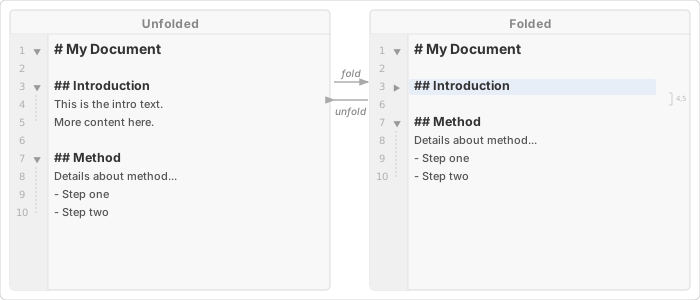
# Chapter 1          ← folds everything until Chapter 2
## Section A         ← folds until Section B (or Chapter 2)
Some content here.
### Detail           ← folds until the next ###, ##, or #
More detail.
## Section B
More content.
# Chapter 2
Folding is visual only — the text is still there, just hidden. Folded sections are preserved when you save and reopen the note.
Indentation-Based Folding#
Indented elements — lists, tasks, and block quotes — fold by tab level. A parent item folds all consecutive children that are indented deeper than itself:
- Parent item        ← folds the two children below
    - Child item
    - Another child
- Sibling item       ← not affected by the fold above
This applies to unordered lists, ordered lists, task lists, and nested block quotes. Headings always use heading-level folding regardless of indentation.
The Fold Menu#
Folding commands live in a dedicated Fold menu:
- macOS — top-level menu bar (between Edit and Format), giving every fold command its own keyboard shortcut.
- iPad — the same Fold menu is available in the menu bar with a hardware keyboard, and as a submenu inside the editor's … (overflow) menu for touch use.
- iPhone — Fold appears as a submenu inside the editor's … menu. Tap … in the navigation bar, then choose Fold for Fold All, Unfold All, and the per-level commands.
Keyboard Shortcuts#
These shortcuts work on macOS and on iPad with a hardware keyboard. On iPhone, use the Fold submenu in the … menu instead.
| Shortcut | Action |
|---|---|
| Cmd+L | Toggle fold at cursor |
| Cmd+Shift+K | Fold all sections |
| Cmd+Shift+L | Unfold all sections |
| Cmd+Option+1 | Fold to Level 1 (#) |
| Cmd+Option+Shift+1 | Unfold # headings |
| Cmd+Option+2 | Fold to Level 2 (##) |
| Cmd+Option+Shift+2 | Unfold ## headings |
| Cmd+Option+3 | Fold to Level 3 (###) |
| Cmd+Option+Shift+3 | Unfold ### headings |
| Cmd+Option+4 | Fold to Level 4 (####) |
| Cmd+Option+Shift+4 | Unfold #### headings |
| Cmd+Option+5 | Fold to Level 5 (#####) |
| Cmd+Option+Shift+5 | Unfold ##### headings |
| Ctrl+Cmd+H | Hoist / Unhoist heading |
Fold All and Unfold All#
Fold All (Cmd+Shift+K) collapses every foldable section in the document — headings, indented lists, tasks, block quotes, code blocks, and tables — in a single pass. Unfold All (Cmd+Shift+L) reopens everything.
Both commands also work recursively inside code blocks and tables so a multi-level outline can be reduced to its top-level headings instantly.
Fold by Level#
Use Cmd+Option+1 through Cmd+Option+5 to fold all headings at a specific level at once. Add Shift to unfold. For example, Cmd+Option+2 folds all ## sections — useful for collapsing a long document down to its chapter headings while keeping the top-level structure visible. These commands use an absolute "Fold to Level N" model: running Fold to Level 2 from any state lands you with all ## and deeper headings closed.
Hoist — Focus on One Subtree#
To go beyond folding and completely hide everything except one heading and its descendants, use Hoist. Click the ↘ arrow next to a heading in the right margin, or press Ctrl+Cmd+H. The hoisted view also scopes the Inspector outline and the preview to just that subtree — ideal for chapter-by-chapter work in long documents.
Drag and Drop#
Headings can be dragged to reorganise your document — all content belonging to the heading moves with it. See Drag & Drop for full details on moving headings, lists, code blocks, and other content.
Outline View#
The Inspector's Outline tab shows a table of contents for the current note. Click any heading to jump to it. Open the Inspector from the toolbar button on macOS, or swipe left on the editor on iOS.
Line Numbers#
Line numbers appear in the left margin inside code blocks only. They show the line number within the fenced code block, making it easy to reference specific lines of code.