Gallery View#
Gallery View (macOS) displays your notes as visual cards in a waterfall layout, giving you a birds-eye view of your collection. Each card renders a live snapshot of the note's content using your current theme — you can scan dozens of notes at a glance.
Note
Gallery View is a macOS-only feature.
Two browse modes: Notes and Gallery#
The sidebar pane has two browse modes, switched from the toolbar:
| Button | Mode | What it shows |
|---|---|---|
| Notes | Note list | The traditional list — title, subtitle, and metadata (default) |
| Gallery | Card view | The same notes as visual cards in a waterfall layout |
Note
Gallery shows notes from your collection, so it isn't available while browsing External Files — the Gallery button is disabled there and re-enables when you return to any notes view.
Resize it to taste#
The gallery is simply a pane you drag wider or narrower:
- Drag it wide and the cards flow into multiple columns (2–4+, depending on width) for a birds-eye sweep of your collection.
- Drag it narrow and it becomes a single column of cards alongside the editor — ideal for browsing and editing side by side.
You don't switch modes to get there — just drag the divider to the width you want and the layout reflows. When the pane is narrow, the Filter / Sort / Group controls collapse to icons to save space; click an icon to open its menu.
Show and hide#
The Gallery toolbar button toggles the pane: click it while the gallery is showing to collapse the pane (more room for the editor), and click again to bring it back. Clicking Notes swaps the pane back to the list.
Toolbar Controls#
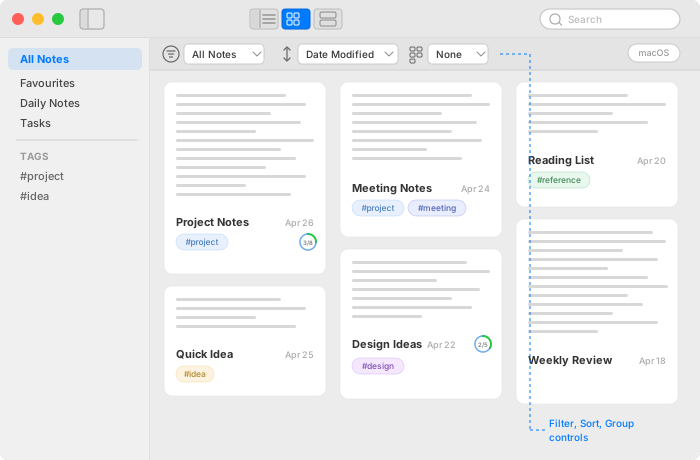
A toolbar bar sits above the gallery cards with three controls on the left — Filter, Sort, and Group — and the Card Size picker on the right. When the pane is narrow, the left controls collapse to icons only.
Filter#
Narrow which notes appear in the gallery:
| Filter | Description |
|---|---|
| All Notes | Every note except trashed, archived, and daily notes |
| Favourites | Notes you've starred |
| Open Tasks | Notes with at least one incomplete task |
| Last 7 Days | Notes modified in the past week |
| Untagged | Notes with no tags |
| Tag... | Opens a tag picker — select a specific tag to filter by |
The gallery also respects your current container selection in the sidebar. If you're viewing a tag or saved query, the gallery shows only matching notes.
Sort#
Control the order notes appear in the gallery:
| Sort Order | Description |
|---|---|
| Date Modified — Newest first | Most recently edited first (default) |
| Date Modified — Oldest first | Least recently edited first |
| Date Created — Newest first | Newest notes first |
| Date Created — Oldest first | Oldest notes first |
| Title — A–Z | Alphabetical |
| Title — Z–A | Reverse alphabetical |
| Due Date | Notes with the nearest active task due date first; notes without due dates last |
| Manual | Your hand-arranged order — only offered when you're viewing a single tag (where a fixed order makes sense) |
The date shown on each card automatically matches the sort order — sorting by creation date shows the creation date, sorting by due date shows the nearest due date, and so on.
Your sort preference is shared between the gallery and the note list — changing it in one updates the other, and the setting persists across sessions.
Group#
Organise cards into visual sections:
| Grouping | Description |
|---|---|
| None | All cards in a single stream |
| Tag | Cards grouped under section headers by their first tag. Untagged notes appear at the bottom |
Card Size#
The grid button at the right end of the gallery toolbar opens a density picker that scales the cards themselves:
| Size | Feel |
|---|---|
| 50% | Maximum density — the most cards on screen for a true birds-eye sweep |
| 65% / 70% / 80% | Compact — more cards per column without sacrificing legibility |
| 100% (Regular) | The default |
| 120% | Large — bigger previews and text, easiest to read at a distance |
Everything on the card scales together — preview text, title, tags, task ring — so a smaller card shows the same content, just denser. Your choice is remembered across launches.
Card size and pane width are independent dials: the pane width decides how many columns you get, the card size decides how much fits in each one. Drag the pane wide and drop the size to 50% for the densest overview of a large collection; keep a single narrow column at 120% for a comfortable side-by-side with the editor.
Card Anatomy#
Each gallery card displays:
- Rendered preview — a snapshot of the note's opening content, styled with your current theme
- Title — bold text below the preview (or "Untitled" for unnamed notes)
- Date — shown in the top-right area, matching the current sort order
- Tags — coloured pills showing tag names, with icons and tints if you've customised them
- Task circle — if the note has tasks, a progress ring appears showing done/total count with colour coding (green for done, blue for remaining, red for overdue)
Card heights vary based on content length, creating the waterfall (masonry) layout. Longer notes produce taller cards.
Keyboard Shortcuts#
| Shortcut | Action |
|---|---|
| Arrow keys | Navigate between cards |
| Return | Open the selected card |
| Notes / Gallery toolbar buttons | Switch the pane between the note list and the gallery |