Database Views#
Database Views let you create filtered, sorted views of your notes — like saved searches with a spreadsheet-style interface.
Creating a View (macOS)#
There are two ways to create a Database View:
- Keyboard shortcut — Press Cmd+Shift+D to open a new Database View window.
- Context menu — Right-click the Database Views header in the sidebar and choose New Database View…. Enter a name, choose what it lists, and click Create.
A newly created view starts with no filters — it shows everything. Add filters and columns, then save to keep it in your sidebar.
What a view lists#
Every view lists one of two things, and you choose which when you create it:
- Notes in this collection — the original kind. One row is one note.
- Rows in your Bike outlines — one row is one row, gathered from every outline you have added. See Bike Rows in a Table.
The choice is made once and stays with the view. A view carries one set of filters, columns and a sort, and those mean different things for a note than for a row — so it is one or the other for good. Make a second view if you want both.
The Bike option appears only once you have added a folder of outlines, and only in your default collection, since that is where External Files live.
Bike rows#
A view does not have to list notes. Point one at your Bike outlines and it puts every row from all of them into one table — the same filtering, grouping, columns and export, over rows instead of notes. It is chosen once, when the view is created.
If you use Bike, that has a section of its own: Bike Rows in a Table. If you don't, nothing on this page changes for you.
Filters#
A Database View is filtered by the same rule model as a saved Query — a set of field/operator/value rules. Filter notes by any combination of:
- Tags
- Title or content text
- Date ranges (created, modified)
- Task status (has tasks, overdue tasks)
- Favourite, trashed, or archived status
- Front matter properties (custom key-value pairs)
- Task metadata — due date, priority, project, context, and completion
Set the match mode to All (every rule must match) or Any (at least one rule matches).
Task rules select notes by their tasks
Because a view returns notes, a task rule (project, context, priority, due date, completion) includes a note when any single task in it matches. Negative rules (is not, does not contain, is not under) only consider notes that actually have tasks, and is none finds tasks with no project or context assigned. The full logic — with worked examples — is in Queries → How task rules select notes.
Has a Task Where ALL Of#
Two separate task rules can be satisfied by two different tasks — a view asking for an unfinished task and a task due this week will include a note whose only task due this week is already finished. When you mean one task to satisfy several conditions, put them in the filter editor's Has a Task Where ALL Of section instead of the built-in rule list.
It behaves exactly as it does in saved queries, including the way negative rules read inside a group — see Queries → Task groups. Like the rest of a view's filters it's authored on macOS; iPhone and iPad honour it.
Columns#
Database Views show notes in a table with configurable columns:
- Title (always shown)
- Created date, modified date
- Tags
- Active, done, and overdue task counts
- Word count
- Favourite status
- Custom front matter properties
- Computed columns (formulas based on other columns)
Click a column header to sort. Drag column headers to reorder. Add or remove columns from the column picker.
Sorting and Grouping#
Sort by any column — click the header to toggle ascending/descending. You can also group notes by a column (e.g. group by modified date to see notes clustered by day).
Saving and Editing#
Click Save in the toolbar to save a view. Saved views appear in the sidebar under Database Views. If you modify a saved view's filters or columns, an unsaved changes indicator appears — save to keep your changes or revert to the saved version.
To delete a saved view, right-click it in the sidebar and choose Delete.
Selecting, previewing and opening a row#
A row does three different things, and each has its own gesture — the same gesture on both platforms, and the same whether the row is a note or a line from one of your Bike outlines.
| What you want | macOS | iPad |
|---|---|---|
| Select a row | Click it | Tap it |
| Preview it | Space | Long-press it, or Space |
| Open it | Double-click, Enter, ⌘-click, or Cmd+Enter | Double-tap the title, or Enter |
| Close the preview | Esc, or click outside it | Tap outside it, Space again, or an arrow key |
| Leave the view | Close the window | Done, or Esc |
The cheap gesture does the cheap thing, deliberately. Selecting is what you do dozens of times while reading a table — it highlights the row and gives the arrow keys, Enter and Space somewhere to start, and nothing else. Opening takes the table down and puts you in the editor, so it asks for the deliberate gesture.
Editable cells keep the spreadsheet behaviour
On the Mac, double-clicking a cell you can edit — a property, the favourite star — edits it rather than opening the row, exactly as a spreadsheet does, and Enter on such a cell starts editing too. Enter on the title column opens. Space doesn't preview while a cell is being edited, because there a space is a character.
The preview#
Space — Quick Look's key — or a long press shows the row rendered, in a popover beside it: the same Markdown → HTML pipeline as the full preview, so tables, code blocks, images, footnotes and tags all appear properly. Wide tables and code blocks scroll inside their own boxes.
A Bike row's preview shows its whole outline, scrolled to that row, rather than the line on its own — what you usually want to know about a row is what sits around it.
The preview never opens or changes anything. On iPad the arrow keys move the selection and close the preview as they go, since it describes the row you have just left; press Space again to preview the new one. Scroll a preview by dragging inside it.
Opening a Bike row#
A Bike row opens the outline it lives in — on macOS, at the row itself. The detail, and the two columns that tell you where a row lives, are under Bike Rows in a Table.
The view updates live as you edit — changes to tags, properties, or task status are reflected immediately. The collection name appears in the view's title bar when you have multiple collections.
iOS#
Database Views sync between macOS, iPhone and iPad via iCloud. iPad presents a first-class multi-column table; iPhone shows a single-column list adapted for the smaller screen.
What you can author on iOS depends on what the view lists.
- Views of your Bike rows are made on iPhone and iPad. Tap New Database View… in the Library and choose Rows in your Bike outlines. You can build and edit their filters, group them, choose columns and widths, add computed columns, and export them — everything the Mac can do. They use the properties you have already defined; defining a property is still a Mac job.
- Views of your notes are designed on macOS and synced across. On iOS you can open them, sort, group, reorder and hide columns, and export them — the filter sheet shows the rules but does not edit them.
A large iPhone in landscape gets the full multi-column table, the same as iPad; in portrait it shows the list.
iPad#
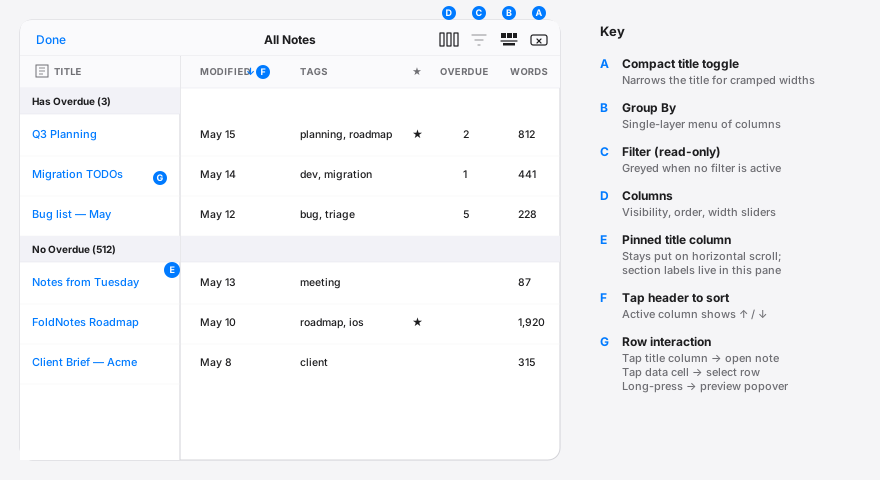
The iPad table is fully featured. The diagram below labels the toolbar buttons and the main interaction points; details follow.
Layout#
- Pinned title column (E) — the Title column is permanently locked to the leading edge of the screen. As you scroll the rest of the table horizontally, titles stay where they are so you always know which row you're reading. Section headers (e.g. Has Overdue (3)) live inside the pinned pane too, so group labels are never out of view.
- Multi-column body — every other visible column appears side by side with type-specific styling (counts right-aligned, dates muted, favourite star, tag list, computed values).
- Column widths — set any column's width from Columns, which is also where you reorder them. (An earlier build had a separate compact-title toggle in the toolbar; Columns does that job properly now, and the toolbar slot it used to occupy is the Export button.)
- Export button (A) — writes the view exactly as you are looking at it — the visible columns, in their order, filtered, sorted and grouped — to a CSV file you can share or save.
- Icon-based headers — wider columns (Title, Modified, Created, Tags, Properties, Computed) show an SF Symbol + uppercase label. Narrow numeric columns (Active Tasks, Done, Overdue, Words, Favourite) are icon-only so the label can't wrap.
Sort and group#
- Tap a column header to sort (F) — the active column shows an
↑/↓indicator. Tap again to reverse direction. - Group By button (B) — a single-layer menu listing each column (and None). Sorting is handled at the column-header level, so this button is dedicated to grouping. Sections are separated by labelled bands at every group boundary; the labels stay visible in the pinned pane so you can always see which group a row belongs to.
Filter#
- Filter button (C) — opens the filter rules. On a Bike rows view they are fully editable: add a rule, change a field or operator, pick a value, swipe a rule away, and switch between matches all and matches any. On a view of your notes the rules are shown but not editable — those are authored on macOS.
- The button is greyed out and non-tappable when a view of your notes has no filter, so you can tell at a glance whether the visible result set is filtered.
Columns and widths#
- Columns button (D) — opens the column manager. Toggle visibility, drag to reorder, and tap any visible-column row (or its tinted width chip on the trailing edge) to open a slider for that column's width (40–600pt in 10pt steps, with a one-tap Reset to Default button). Title is locked at the top of the list and gets the same width slider as every other column. Computed columns can be reordered but not removed (they can only be authored on Mac).
Tap behaviour (G)#
- A single tap selects the row — title column or data cell. It highlights the row in the pinned title pane so the arrow keys, Enter and Space have a starting point, and doesn't navigate away. This lets you scrub horizontally through the values without accidentally opening a note.
- Double-tap the title to open — the note, or a Bike row's outline.
- Long press on any cell shows the rendered HTML preview as a popover anchored to that row. Same Markdown → HTML pipeline used by the full preview, so code blocks, tables, images, footnotes, and tags all render properly. Wide tables and code blocks scroll horizontally inside their own boxes; the rest of the popover stays put. The preview never opens or modifies anything — it is a pure read-only popover.
A tap used to open the note there and then, which on iOS takes the whole table down: the cheapest gesture doing the most expensive thing. Tapping a Bike row in the data columns still previews it, as a tap does on iPhone.
See Selecting, previewing and opening a row for the model both platforms share, and Navigating rows below for the keyboard.
Scrolling#
- Horizontal scroll — when columns exceed the screen, the body scrolls sideways under the pinned title pane. An axis-locked pan keeps the table from drifting diagonally — once your finger commits to horizontal or vertical, it stays on that axis. The trailing-edge elastic bounce is suppressed for a calmer feel.
Navigating rows#
The iPad database view distinguishes between selecting a row and opening the note, so you can scrub through cells without accidentally jumping into the editor.
| Action | Touch | With keyboard |
|---|---|---|
| Select a row (highlight, no navigation) | Tap it — any column | Up / Down to move the selection |
| Open the note or outline | Double-tap the row in the Title column | Press Enter on the selected row |
| Show preview | Long-press any row | Press Space on the selected row |
| Close preview | Tap outside the popover | Space again, or an arrow key |
| Scroll the preview | Drag inside the popover | — |
| Leave the view | Done | Esc |
When you open the view, the first row is selected automatically so keyboard navigation has a starting point. The selection highlight appears in the title pane and persists as you scroll. The preview is a scrollable HTML popover anchored to the selected row.
iPhone#
iPhone (and any iPad context narrow enough to be in compact size class — Slide Over, half-width split view) shows the view as a single-column list — note title on top, your chosen field as a subtitle. The toolbar's Detail Field picker chooses which column renders below the title. Sort and Group By controls work via the sort-menu toolbar item.
The list keeps the plain one-tap behaviour a phone expects: tapping a note opens it, and tapping a Bike row previews it — the outline scrolled to that row. Double-tap, long-press and the keyboard model above belong to the multi-column table.
macOS#
macOS and iPad share one interaction model — click or tap selects, Space or a long press previews, double-click and Enter open. The Mac adds ⌘-click and Cmd+Enter to open from anywhere in the row, and Esc to close a preview without leaving the table; a double-click on an editable cell still edits it. The full model is above. Sort, group, filter, column visibility, width, and computed-column authoring all live on the Mac toolbar as before.
Capability summary#
| Capability | iPhone | iPad | macOS |
|---|---|---|---|
| Browse a saved view | |||
| Sort (tap header or menu) | menu only | ||
| Group by a column | |||
| Toggle column visibility | detail field only | ||
| Reorder visible columns | |||
| Adjust column widths | |||
| Multi-column table layout | |||
| Pinned title column on horizontal scroll | |||
| Preview a row (long-press, or Space) | |||
| Open a row in the editor | |||
| Export as CSV | |||
| Design a new view — choose its filters and columns | |||
| Change an existing view's filter rules | |||
| Author computed columns | |||
| Inline edit user properties from the table |
The last four are about making and changing a view, as opposed to browsing one: a view of your notes is designed on the Mac and syncs everywhere. A view of your Bike rows is the exception — those can be built and edited on any device, and have a table of their own.