Inspector#
The Inspector is a sidebar panel on the right side of the editor. Toggle it from the toolbar button on macOS, or swipe left on the editor on iOS.
Tabs#
The Inspector has five tabs, selected via a segmented control at the top:
Graph#
Shows a local link graph centred on the current note. Connected notes (via wiki-links) appear as nodes. Click a node to navigate to that note.
Outline#
A table of contents generated from the note's headings. Click any heading to jump to it. Useful for navigating long documents.
When the editor is hoisted on a heading, the outline narrows to just the hoisted subtree — so it doubles as a chapter-level mini-navigator while you work inside one section. Learn more about Hoist →
Platform availability
Outline is available on macOS, on iPad (both orientations), and on iPhone in landscape. On iPhone in portrait the Inspector hides the Outline tab — there isn't room to show both the outline and the editor at the same time, and a tap on a heading wouldn't have a visible editor to jump to. Rotate the iPhone to landscape to access it.
Words#
Displays writing statistics:
- Word count
- Character count
- Sentence count
- Paragraph count
- Estimated reading time
- Key dates (created, modified)
Properties#
Shows the note's front matter properties. You can view and edit custom properties (like status, category, etc.) that you've added to the note.
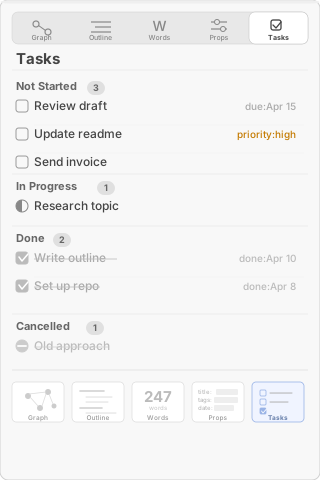
Tasks#
Lists all tasks in the current note, grouped by status. Each task shows its text, due date, and priority. Click a task to jump to its location in the editor.
Collection Graph#
For a full collection-wide graph (not just the current note), use Cmd+Shift+G to open the standalone Collection Graph window. This shows all notes and their wiki-link connections as an interactive force-directed graph.