Tasks#
FoldNotes has rich task support with four states, due dates, priorities, project tracking, and a kanban-style Task Board.
Task Syntax#
Tasks are lines starting with a checkbox:
Click a checkbox to cycle through states: Not Started → In Progress → Done → Cancelled → Not Started.
On macOS, task checkboxes are also interactive in the preview window — click a checkbox in the rendered preview and the change is applied to the source document instantly.
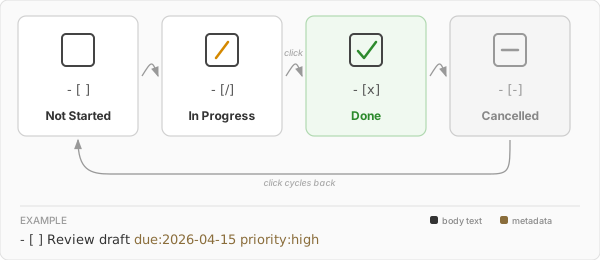
When a task is marked as done, FoldNotes automatically adds a done: date.
Task Metadata#
Add metadata after the task text using key:value syntax (no spaces around the colon):
- [ ] Review draft due:2026-04-15 priority:high
- [x] Send report done:2026-04-03
- [ ] Call dentist due:2026-04-10 priority:low
- [ ] Deploy feature project:alpha due:2026-04-20
- [ ] Email quarterly numbers project:finance context:sarah
You can type metadata by hand, or use the command palette to insert it — see Command Palette below.
Due Dates#
due:YYYY-MM-DD sets a due date. Tasks become overdue after 5 PM on the due date in your local timezone. Overdue tasks are highlighted in the sidebar task indicator.
Overdue is worked out at the moment you look, in every view and on every device, so a task turns overdue at 5 PM on its due day whether or not its note has been opened since. Bike outlines follow Bike's own rule: a row is overdue from the day after its due date.
Priorities#
priority:high, priority:medium, or priority:low sets the task's priority level. High-priority tasks are marked with !! in task lists.
Completion Dates#
done:YYYY-MM-DD is added automatically when you check a task. It's removed if you uncheck it.
Projects#
project:name assigns a task to a project. Projects group related tasks across notes:
- macOS: Filter by project in the Task Board (group by Project for a column per project), the CLI (
fn tasks --project alpha), or a Saved View with a "Task Project" rule - iOS: Create a Saved View with a "Task Project" filter rule to surface notes containing tasks from a particular project
Note
The Task Board and CLI are macOS-only. On iOS, saved views are the best way to track tasks across notes by project.
See Projects for the full project model — task-level vs note-level project tagging, the Project Browser for renaming and deleting, and how projects integrate with templates and the tag helper.
Contexts#
context:name pins a task to a context — a free-form group that cuts across projects. A task can carry several at once: context:sarah,waiting.
Where a project says which effort a task belongs to — one place in a hierarchy — a context groups tasks by any other dimension you care about, and it applies universally, regardless of project. The most powerful use is a person: tag tasks with a colleague's name and you can pull up everything on their plate at once, even though those tasks are scattered across a dozen different projects and notes. It works just as well for a client, a place, a tool, or a state like waiting or this-week.
This suits the way FoldNotes captures work — you write notes as things happen, daily notes and meeting notes alike, and drop tasks inline where they belong. A context is the thread that later pulls the related ones back together, wherever they live.
Contexts are flat — no hierarchy. Names match case-insensitively; use _ or / for multi-word names (context:client_acme). Adding, removing, or renaming a context never changes a task's identity, so its history and reminders stay intact.
Surface tasks by context with:
- macOS: The Task Board's Context filter is multi-select — pick one or more contexts, combined with any project, status, and tag filters. From the CLI:
fn tasks list --context sarah, plusfn tasks set --context …/--clear-context,fn tasks contexts(list with counts), andfn contexts rename/stripacross the whole collection. - macOS & iOS: A Saved View with a Task Context rule surfaces notes containing tasks in a given context.
Note
The Task Board and fn CLI are macOS-only. On iOS, saved views are the way to track tasks by context.
Update every device before using contexts
Contexts are new. If a device you sync with still runs an older version of FoldNotes, editing a context-tagged task can trigger repeated iCloud sync conflicts and reassign the task's internal ID. Update FoldNotes on every device first — the app warns you once before your first context add.
Command Palette#
The command palette is a context-aware popup that lets you quickly insert formatting and task metadata without memorising the syntax.
Trigger it by typing / at the start of a line or after a space. A floating panel appears with commands relevant to your current context:
- On a task line — due date, done date, priority (high/medium/low), and project
- On any other line — headings, task, bullet list, block quote, code block, and table
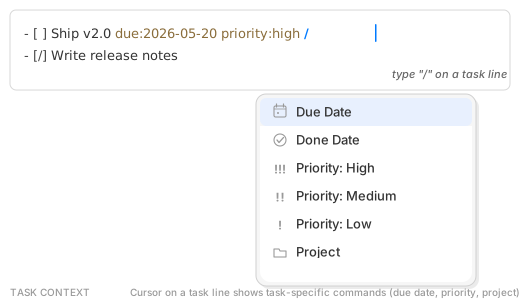
Arrow keys navigate the list, Enter confirms, Esc dismisses. Typing after / filters the list to matching commands — for example, /d narrows to Due Date and Done Date.
When you select a command, FoldNotes removes the / trigger text and inserts the result. For Due Date, a date picker opens. For Priority, the metadata is inserted immediately and the palette stays open so you can chain commands (set priority, then due date, then project — all in one flow).
Platform differences#
| Feature | macOS | iPad (keyboard) | iPhone |
|---|---|---|---|
| Trigger | Type / in the editor |
Type / in the editor |
Type / or tap the / button on the keyboard toolbar |
| Navigation | Arrow keys + Return | Arrow keys + Return | Tap to select |
| Filter | Type after / to filter |
Type after / to filter |
Type after / to filter |
| Date picker | Graphical calendar popup | System date picker | System date picker |
| Project picker | Floating panel with search | Action sheet | Action sheet |
Tip
On iPhone, the command palette is especially useful for adding task metadata. Look for the / button in the keyboard toolbar — it opens the palette without having to find the slash key.
Task Comments#
Add notes to any task using block quote lines (>) directly below it:
- [ ] Review the proposal due:2026-05-15 project:website
> Check competitor pricing before the meeting
> Ask Sarah about the updated budget

- [x] Send weekly report done:2026-05-02
> Included Q2 projections as requested
Block quote lines can be indented to match the task's indentation level. Consecutive > lines are captured as a single comment block (up to 200 characters). A blank line or any non-> line ends the comment.
Where comments appear:
| Platform | Location | How |
|---|---|---|
| macOS | Task Board | Cards show up to 2 lines of comment text below the task title |
| macOS | CLI | fn tasks includes comment text in output |
| iOS | Editor | Tap the comment indicator on a task line to see a preview |
Comments are especially useful with project: metadata. Group by Project on the Task Board to see all tasks for a project with their comments visible on each card — giving you a project dashboard at a glance.
Note
Comments are stored as standard Markdown block quotes in your .md files. They sync across devices via iCloud, but the Task Board and CLI are macOS-only features. On iOS, comments are visible through the inline editor preview.
Task Indicators#
The sidebar shows a task circle next to notes that contain tasks:
- Green arc — resolved tasks
- Blue arc — remaining active tasks
- Red arc — overdue tasks
The label shows the count (e.g. "3/7" meaning 3 resolved out of 7 total).
Bike outlines in your External Files get the same circle, read from Bike's own task states — see Editing Bike Outlines, where one state (cancelled) counts differently.
Cancelled tasks count as resolved#
A cancelled task - [-] is counted on the completed side, alongside done
- [x]. Cancelling is a decision — the work is no longer outstanding — so a
section where everything is either done or cancelled reaches ✓ rather than
sitting permanently short of its total.
Only not started - [ ] and in progress - [/] count as outstanding.
Section task counts#
A heading or indented parent that contains tasks shows a small count beside it
— 12/15, or ✓ when everything beneath it is resolved. Turn it off with
Show Task Counts on Parent Paragraphs in Settings.
Two things are worth knowing about that number:
-
It covers the whole subtree, not just direct children. A level‑2 heading containing two level‑3 subsections reports every task under all three, so its count is the sum of the subsections' counts plus any tasks sitting directly beneath it. Subsections still show their own counts; the parent is a running total, not a separate tally.
-
It doesn't change when you fold. The count means the same thing whether a section is open or collapsed — which is the point, since when a section is collapsed its count is the only indication of what's hidden inside.
Finding the outstanding few in a large section
In a long section the parent count can read as almost-complete — 217/220
— without showing you where the last three are. Look at the subsection
counts: the one that isn't ✓ is holding the remainder.
Section counts are hidden in Distraction-Free — Zen mode on macOS.
Task Board#
The Task Board (macOS) pulls every task from every note into one kanban view — grouped by status, priority, due date, or project, updating live as you edit, with a calendar overlay for dated tasks. Open it with Shift+Cmd+B or View > Task Board.
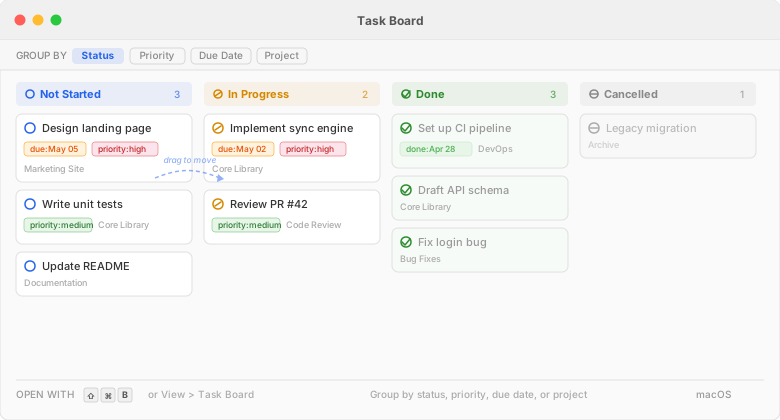
It's one of FoldNotes' standout features and has its own full guide — grouping, live updates, card anatomy, the calendar, and filtering.
Inspector Tasks Tab#
The Inspector's Tasks tab shows all tasks from the current note, grouped by status. Click a task to jump to its location in the editor. This gives you a birds-eye view of your to-do items.
Cross-Note Task Queries#
You can query tasks across your entire collection on both platforms:
macOS — CLI:
fn tasks --overdue              # All overdue tasks
fn tasks --due-today            # Tasks due today
fn tasks --priority high        # High priority tasks
fn tasks --note "Project Plan"  # Tasks in a specific note
fn tasks --status in-progress   # Filter by status
fn tasks --project alpha        # Filter by project
Both platforms — Saved Views:
Create a Saved View with task filter rules (status, priority, project, context, due date) to build a persistent query that appears in the sidebar. Saved views sync across devices via iCloud, so a view created on macOS is available on iOS and vice versa.
How task filters select notes#
A saved view returns notes, not individual tasks — so a task-based rule asks a question about a note's tasks and includes the note if the answer is yes. Two consequences are worth knowing, because they're the usual "why is this note here / missing?" questions:
- A rule matches a note if any single task in it qualifies. "Task Context is sarah" returns every note that has at least one task tagged
sarah, even if its other tasks aren't. Add rules to narrow it: "Task Context is sarah" and "Task Completion is false" = notes with an unfinished sarah task. - Negative rules only consider notes that actually have tasks. "Task Project is not alpha" means "has a task, and none of them is in alpha." A note with no tasks at all (a recipe, a journal entry) is neither "in alpha" nor "not in alpha" — it's out of scope for a task question, so it's excluded from both. This applies to is not, does not contain, and is not under.
To find tasks that were never assigned, use the is none operator: "Task Project is none" returns notes containing a task with no project (inline or inherited); "Task Context is none" returns notes with a task carrying no context. These are the saved-view equivalent of the Task Board's (No Project) / (No Context) filters.
Task Notifications#
FoldNotes can send system notifications when tasks are due. See Task Notifications for details.