Templates#
macOS only.
Templates let you generate notes from a predefined structure with placeholders that get filled in at creation time. They're the fastest way to keep recurring notes — meetings, daily logs, sprint retros, post-mortems — consistent and date-stamped.
A template has two halves:
- Title Template — resolves to the note's filename
- Body Template — resolves to the note's content
Both halves can contain placeholders that get substituted with date, time, cursor position, and user-supplied parameter values.
Where Templates Live#
Templates are stored as JSON files in the .templates/ hidden directory inside your collection. They sync via iCloud alongside notes, queries, and properties. Each template is a single .json file keyed by UUID.
Because templates live inside the collection, each collection has its own templates — switching collections shows that collection's set.
Creating a Template#
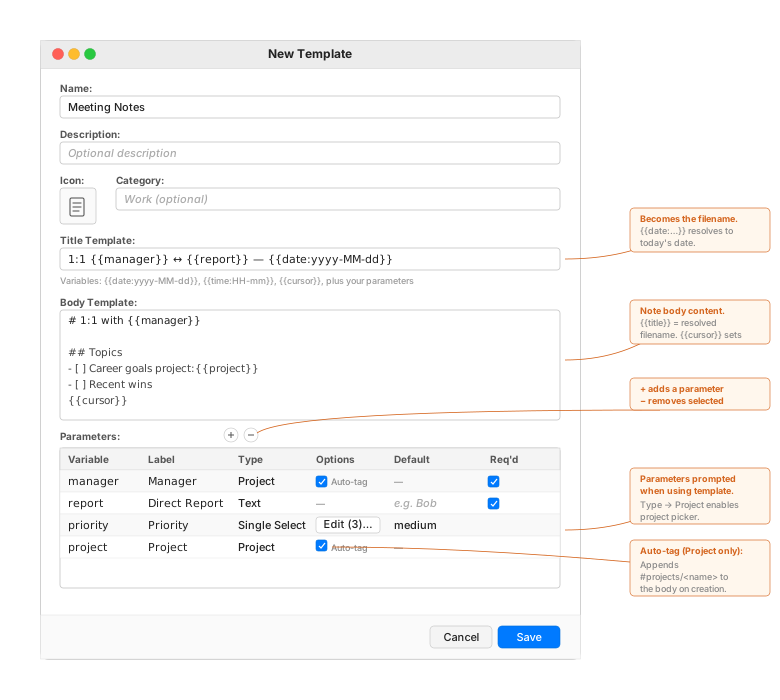
Open File ▸ Manage Templates… to see your existing templates. Click the + toolbar button to create a new one. The Template Editor sheet opens:
Editor Fields#
| Field | Purpose |
|---|---|
| Name | Internal name shown in the picker. Not used in the note's filename. |
| Description | Optional. Shown as a subtitle in the picker and as the header in the parameter form. |
| Icon | Pick an SF Symbol from the curated palette. Shown in the picker. |
| Category | Optional. Helps group related templates in the manager. |
| Title Template | The string that becomes the new note's filename (after placeholder substitution and sanitisation). |
| Body Template | The note's body content. Can include Markdown, tasks, tags, code blocks — anything FoldNotes supports. |
| Parameters | A table of named values the user fills in when using the template. Each parameter has a Variable Name, Display Label, Type, Default, and Required flag. |
Saving#
Click Save to write the template to .templates/<uuid>.json and dismiss the editor. The template immediately appears in the picker.
Edit existing templates
Double-click a row in the Template Manager to re-open the editor on an existing template. Changes apply to future uses; notes already created from the template are unaffected.
Variables (Placeholders)#
Variables use {{name}} syntax. They're resolved in the title and body templates before the note is created.
Built-in Variables#
| Placeholder | Resolves to | Example output |
|---|---|---|
{{date}} |
Today's date (default format yyyy-MM-dd) |
2026-05-15 |
{{date:FORMAT}} |
Today's date in a custom format | {{date:MMMM d, yyyy}} → May 15, 2026 |
{{time}} |
Current time (default format HH:mm) |
14:30 |
{{time:FORMAT}} |
Current time in a custom format | {{time:h:mm a}} → 2:30 PM |
{{cursor}} |
Removed from the output; the cursor lands here when the note opens | n/a |
{{title}} |
The fully-resolved title template (filename) — body template only | 2026-05-15 — Standup |
{{date}} and {{time}} matching is case-insensitive — {{Date:yyyy-MM-dd}}, {{DATE:…}}, {{date:…}} are all recognised. Useful when iOS autocorrect capitalises the first letter as you type the placeholder.
Format Strings#
The format strings use Unicode TR35 date patterns. Common ones:
| Pattern | Meaning | Example |
|---|---|---|
yyyy |
4-digit year | 2026 |
MM |
2-digit month | 05 |
MMMM |
Full month name | May |
dd |
2-digit day | 15 |
EEEE |
Full weekday | Friday |
HH |
24-hour | 14 |
mm |
Minutes | 30 |
a |
AM/PM | PM |
Parameter Variables#
Any parameter you define in the table uses its Variable Name as the placeholder. If you add a parameter named project, write {{project}} in the title or body template to substitute the user's input.
Parameter Types#
| Type | Use for | UI in the form |
|---|---|---|
| Text | Free-form short strings | Text field |
| Number | Numeric values | Text field with number formatting |
| Date | A specific date | Date picker |
| Date + Time | A specific date and time | Date + time picker |
| Checkbox | Boolean yes/no | Checkbox (must be checked to satisfy required) |
| Single Select | Pick one from a list | Dropdown menu populated from the Options popover |
| Multi Select | Pick zero or more from a list | Button-and-checkbox dropdown |
| URL | A web address | Text field, URL keyboard hints |
| Project | A FoldNotes project name | Autocomplete combo box populated from known projects |
For Single Select and Multi Select types, the Options column in the parameter table shows an Edit (N)… button. Click it to open a popover where you add option strings and tick which one(s) should be the default. Removing an option that was marked default automatically clears that default.
The Project Parameter#
A parameter of type Project autocompletes from existing projects in your collection — both projects registered via the project store and ones derived from your task project:name metadata. The user sees a dropdown with all known project names; they can pick an existing one or type a new one.
See Projects for the full project system — the dual note/task model, picker integrations, Task Board, and the Project Browser for renaming and orphan management.
Auto-tag: turning the project into a note tag#
When a parameter's Type is set to Project, the Options column in the parameter table shows an Auto-tag checkbox (visible on the diagram above). This controls a small piece of automation at note creation:
- Unchecked (default) — picking a project only substitutes wherever
{{paramName}}appears in the title or body templates. Nothing else happens. - Checked — at note creation, FoldNotes appends
#projects/<projectName>to the end of the body. The new note is automatically tagged under that project, making it instantly discoverable via tag queries (tag:projects/Marketing-Q4), the tag browser, the collection graph, and any database view that groups by tags.
Why this is useful: project tags using the hierarchical projects/<name> convention give you a single, queryable way to scope notes to a project — without polluting the front matter with metadata that becomes stale when projects come and go. The tag lives in the body where you can remove it manually if the note's relationship to the project changes.
If a template has multiple .project parameters with Auto-tag on, all of their chosen project names are appended (space-separated) on the final tag line. Example: a "Quarterly Review" template with primaryProject and secondaryProject params, both Auto-tag on → resulting body ends with #projects/Marketing-Q4 #projects/Brand-Refresh.
You can also use the parameter inline on task lines to attach the project as task metadata:
- [ ] Send agenda project:{{project}}
- [ ] Read background docs
- [ ] Follow up project:{{project}} due:{{date:yyyy-MM-dd}}
When the user picks "Marketing-Q4", the resulting tasks read:
- [ ] Send agenda project:Marketing-Q4
- [ ] Read background docs
- [ ] Follow up project:Marketing-Q4 due:2026-05-15
Only the tasks you marked carry the project. Other tasks stay clean — useful when only some tasks in a template actually belong to the project.
Using a Template#
Press ⇧⌘N (or use File ▸ New from Template…) to open the picker.
- Choose a template — the picker shows your templates with their icons, names, and descriptions. Double-click a row, or select and click Use Template.
- Fill the parameter form — a sheet opens with each parameter as a labeled field. Required fields are marked with
*. The Create button validates: if any required field is empty (or a required checkbox is off), the form shows an error and focuses the first missing field. - Note is created — the title template is resolved and sanitised to become the filename; the body template is resolved (with the just-computed filename available as
{{title}}) and written to the file. If a note with that filename already exists, FoldNotes appends a counter (My Note,My Note 2,My Note 3).
Filename Sanitisation#
The resolved title is sanitised before becoming a filename:
:/\are replaced with-— so1:1 Meetingbecomes1-1 Meetingrather than losing characters?*"<>|#are dropped — these are problematic in filenames and don't have a sensible replacement- Leading and trailing whitespace is trimmed
The original Title Template text (with the colon) is preserved; only the resolved filename is sanitised.
Filename Locking#
Notes created from a template are saved with nameLocked: true in their front matter. This prevents FoldNotes' standard heading-based auto-rename from overwriting the date-stamped filename with whatever's in the body's first H1. You can still rename manually any time via the toolbar, naming banner, or the Files app — manual renames keep nameLocked set.
Examples#
Daily Standup#
| Field | Value |
|---|---|
| Name | Daily Standup |
| Icon | bubble.left.and.bubble.right |
| Title Template | Standup — {{date:yyyy-MM-dd}} |
| Body Template | (see below) |
# Standup {{date:EEEE, MMMM d}}

## Yesterday
{{cursor}}

## Today
- [ ]

## Blockers
-

#standup #daily
Result on 15 May 2026:
- Filename: Standup — 2026-05-15.md
- H1: # Standup Friday, May 15
- Cursor lands under ## Yesterday
One-on-One#
| Field | Value |
|---|---|
| Name | 1:1 Meeting |
| Icon | person.2.fill |
| Title Template | 1:1 {{manager}} ↔ {{report}} — {{date:yyyy-MM-dd}} |
| Parameters | manager (Text, required), report (Text, required), project (Project, auto-tag on) |
# 1:1 with {{manager}}

**Date:** {{date:EEEE, d MMMM yyyy}}
**Direct report:** {{report}}

## Topics
- [ ] Career goals project:{{project}}
- [ ] Recent wins
- [ ] Blockers project:{{project}}
- [ ] Feedback (both directions)

## Notes
{{cursor}}
Picking manager=Alex, report=Sam, project=Marketing-Q4 produces:
- Filename:
1-1 Alex ↔ Sam — 2026-05-15.md(colon replaced with dash) - Two task lines carry
project:Marketing-Q4as task metadata - Body ends with
#projects/Marketing-Q4(auto-tag)
Sprint Retrospective#
| Field | Value |
|---|---|
| Name | Sprint Retro |
| Title Template | Retro — Sprint {{sprint}} — {{date:yyyy-MM-dd}} |
| Parameters | sprint (Number, required), team (Single Select: Backend, Frontend, Infra, required) |
# Sprint {{sprint}} Retro — {{team}}

## What went well
{{cursor}}

## What could be improved


## Action items
- [ ]

#retro #team/{{team}}
Project Spec (no date in name)#
Some templates don't want a timestamp — a project spec is its own thing, not a daily log.
| Field | Value |
|---|---|
| Name | Project Spec |
| Title Template | {{title}} |
| Parameters | title (Text, required, label "Spec Title") |
# {{title}}

**Owner:** {{cursor}}
**Status:** Draft
**Created:** {{date:yyyy-MM-dd}}

## Problem


## Proposal


## Open questions
- [ ]

#spec
If two notes are created with the same title, FoldNotes appends a counter — My Feature.md, My Feature 2.md, etc.
Querying Notes Created from Templates#
Templates pay off most when the structure they enforce hooks into the rest of FoldNotes. Every tag, task, and property a template adds is queryable, filterable, and groupable — without any extra setup.
Saved Queries#
Any tag a template adds to the body becomes a query filter. Common patterns:
| Template behaviour | Matching saved query |
|---|---|
#standup in the body |
tag:standup — instant "all standups" list |
#retro plus tag:team/{{team}} |
tag:retro tag:team/Backend — retros for one team |
| Auto-tag on a Project parameter | tag:projects/Marketing-Q4 — every note touching the project |
tags: array in the template's front matter |
Any tag from that array becomes filterable |
A weekly retro template that adds #retro produces a saved-query view that grows automatically as each week's retro is created — no manual curation.
Task Board & Task Queries#
Task metadata generated by the template feeds every task-aware surface:
| Template line | Surfaces it lights up |
|---|---|
- [ ] Follow up due:{{date:yyyy-MM-dd}} |
Calendar anchors the task to that day; task queries like "due this week" pick it up |
- [ ] Status check project:{{project}} |
Task Board can group/filter by project; saved task queries scope to that project |
- [ ] Critical bug priority:high |
Task Board's priority column; task queries sortable by priority |
Combine these on one task line and a single template propagates structure to the Calendar, Task Board, and any number of task queries at once.
Database Views#
Database views work on user-defined properties (text, number, date, single-select…) and tags. Templates can pre-fill properties via the propertyDefaults field:
| Pre-filled property | Database view payoff |
|---|---|
status: "Draft" |
Notes from this template appear in the "Draft" column of a Kanban-style view grouped by status |
team: "Backend" |
Single-select filter; views grouped by team auto-include the new note |
quarter: "Q4 2026" |
Filter and group dimension shared across all notes of this kind |
A Sprint Retro template that pre-fills status: Active and asks the user for team via a single-select parameter feeds two columns of a status-board view (with the new note appearing in the right cell immediately) and lets you slice further by team.
Backlinks#
If the body template contains [[Project Hub]] or another wikilink, every note created from the template backlinks to that hub. Open the hub's References tab in the Inspector and you have a live, chronologically-sorted index of all instances — useful for "Project Hub → all meetings, retros, decisions, and status notes" overviews.
Tips#
Keep filenames distinct for recurring templates
For templates you'll use frequently (daily logs, standups, meetings), include {{date:yyyy-MM-dd}} in the Title Template so you don't end up with Meeting 365. The dedup counter is a fallback, not a strategy.
Match filename and H1
Use # {{title}} in your body template to keep the H1 in sync with the filename. The resolver auto-injects the resolved title into {{title}} during body resolution — handy for templates where you want the filename and the visible heading to be identical. Otherwise, the H1 can be a clean static title and the filename can be the date-stamped identifier — both patterns are valid.
Selective task tagging
Add project:{{paramName}} only to the tasks that actually belong to a project — peripheral tasks (background reading, admin) stay clean. This is more useful than tagging every task indiscriminately.
Variables hint in the editor
Look just under the Title Template field in the Template Editor — there's a small hint line listing the available variables. The same syntax works in both the Title Template and the Body Template.