Task Board (macOS Only)#
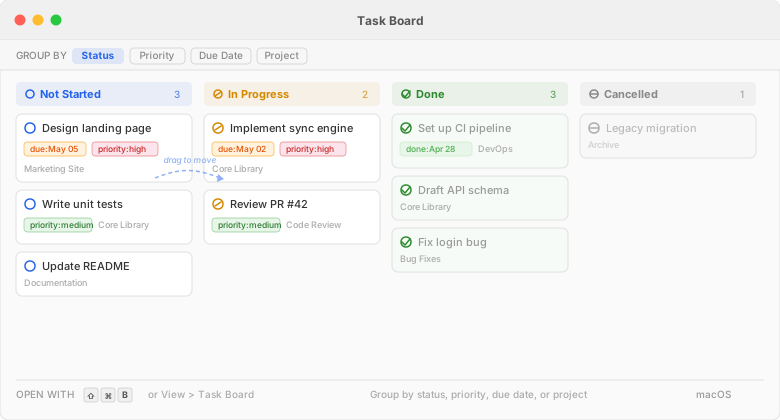
The Task Board is FoldNotes' answer to the oldest tension in note-taking: tasks belong in their notes, where they have context — but tasks buried in notes get forgotten. The board pulls every task from every note in your collection into one kanban view, without ever moving a task out of its note. The note stays the single source of truth; the board is that truth, viewed sideways.
Open it with Shift+Cmd+B or View → Task Board. It opens in its own window, designed to sit beside your editor while you work.
Live, in both directions#
The board isn't a report you refresh — it's a working surface that mirrors your editing as it happens:
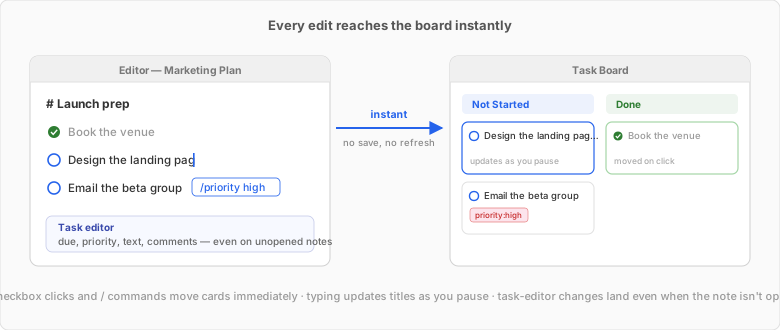
- Tick a checkbox or use a
/command (priority, due date) in the editor — the card moves to its new column immediately. - Type on a task line — the card's title updates as you pause, including
due:andpriority:tokens typed as text, which re-file the card. - Edit in the task editor — due date, priority, text, comments — and the card updates the moment you commit, even when the note isn't open anywhere.
- Undo (Cmd+Z) in the editor moves the card back.
And the reverse direction is just as direct: drag a card between status columns and the checkbox in the note changes; edits on the board write straight back into your markdown. Newly typed tasks join the board when the note saves (moments later); edits from other devices arrive with sync.
Anatomy of a card#
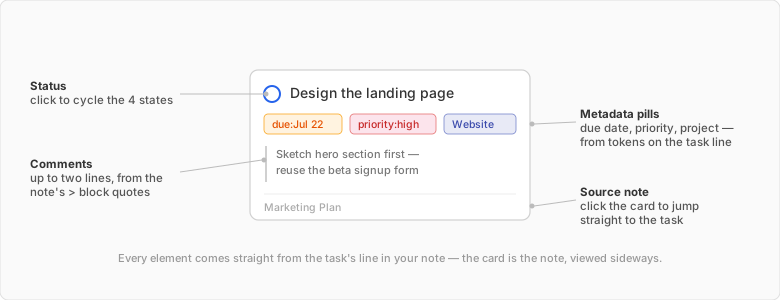
Everything on a card comes from the task's line (and the > block quotes under it) in your note:
- Status circle — the four-state checkbox: not started
[ ], in progress[/], done[x], cancelled[-]. Click it to cycle. - Metadata pills — parsed from the task line's tokens, on up to two rows:
due:andpriority:on the first, project and context pills (teal@name) on the second. A card only grows the second row when it has a project or context, so simple tasks stay compact. - Comments — up to two lines from the task's comment block.
- Source note — click anywhere on the card to jump to the exact task line in the editor. Double-click (or Enter) opens the task editor for focused changes: status, due date, priority, project, and a free-form comments editor with full markdown.
Multi-select works as you'd expect: Cmd-click to toggle, Shift-click for a range — then drag or change status for all of them at once.
Grouping#
Three grouping modes, switched from the toolbar — the columns rearrange in place, keeping your scroll position on filter changes:
| Mode | Columns |
|---|---|
| Status (default) | Not Started, In Progress, Done, Cancelled |
| Priority | High, Medium, Low, None |
| Due Date | Overdue, Today, Tomorrow, This Week, Later |
Column headers stay pinned while you scroll, with live task counts.
Grouping by Due Date leaves undated tasks off the board — a task with no due date has no day to sit under. They stay visible on the Status and Priority boards, and the toolbar's count tells you how many are hidden.
A single Sort control orders the cards inside every column at once — sorting applies to the whole board, not per column. Five orders exist: Due Date, Priority, Note, Status and Project. Four are offered at a time: whichever matches your current grouping is hidden, since sorting by the thing you're already grouped by would do nothing. Group by Status and you can sort by Due Date, Priority, Note or Project; group by Due Date and Status takes its place in the menu.
The calendar overlay#
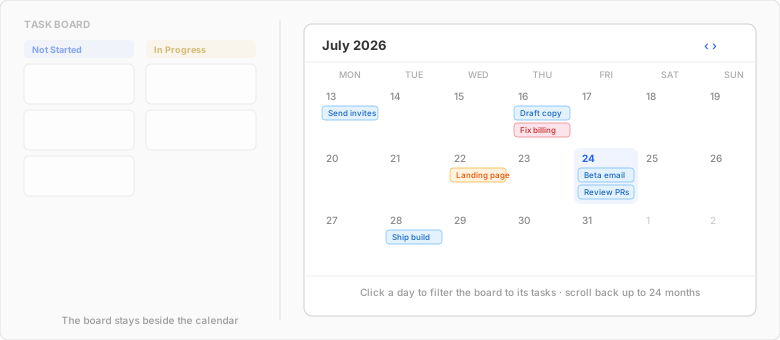
Toggle the calendar to see every dated task plotted on a month grid, beside the board. Click a day to filter the board to that day's tasks; navigate months freely (it scrolls back a full 24 months and always opens on today). Dragging a due date change onto a task — from the calendar or the task editor — updates the affected day cells immediately.
Filtering#
The filter bar narrows the board by status, project, context, tag, or a text search — and filters compose, so "high-priority #launch tasks containing email" is one filter away.
Each control has a small caption above it and a fixed width, so the toolbar doesn't shift as you change selections. Project and Context are multi-select checklists that stay open while the board updates behind them:
- Tick several values to widen the result — every task in any selected project, or carrying any selected context.
- Each checklist starts with a (No Project) / (No Context) row — tick it to surface tasks that were never assigned one (handy for triage). Ticking it alongside named values adds the unassigned tasks to the result; it doesn't narrow it.
- Leaving a filter empty means "don't filter by this" — all tasks pass, assigned or not.
The Queries page explains the same project/context matching in depth (including the is none rule).
Working with the board#
A few patterns that make the board more than a to-do list:
- A daily driver, docked beside the editor. Group by Status and leave it open — as you tick checkboxes and type in your notes, cards move in real time. It's a live picture of where everything stands, not a report you refresh.
- Plan by priority, then work by status. Group by Priority to triage what matters, drag cards to set priority, then switch back to Status to execute. Grouping changes keep your scroll position.
- A person's plate, across every project. Filter Context to a colleague's name (contexts cut across projects) — one board of everything involving them, no matter which note or project each task lives in.
- This week, everywhere. Group by Due Date, or toggle the calendar and click a day, to see what's landing soon regardless of project.
- Triage the loose ends. Filter Context → (No Context) (or Project → (No Project)) to find tasks you captured in the flow of writing but never classified, and give them a home.
- Scope to an effort. Multi-select a parent Project to pull in it and its sub-projects, then group by Status to run that workstream on its own board.
Reminders that finish the job#
Tasks with due dates can fire notifications — and since Build 20, the notification itself can complete the loop: Mark Done ticks the task in its note directly from the reminder banner, no window needed, with two snooze options beside it. The board card moves the moment it happens.
Part of a bigger system#
- The same tasks power the Inspector's Tasks tab (per-note view), the doc list's task circles, and queries / database views with task rules.
- The command line tool reads and mutates the same tasks —
fn tasks --project alpha,fn tasks --context sarah,fn tasks --no-context,fn tasks --due-before friday— for scripting and integrations. - Task syntax, metadata tokens, and comments are documented in Tasks — everything is plain markdown in your files.
macOS only
The Task Board is a macOS feature. On iPhone and iPad, task due-date notifications (with Mark Done and snooze) work identically, and saved views are the best way to track tasks across notes.