The Toolbar#
macOS only.
The toolbar runs across the top of the main window. Its buttons sit over the panes they belong to: the Sidebar button over the Tag List; Sort, Search and New Note over the note list; and the rest over the editor.
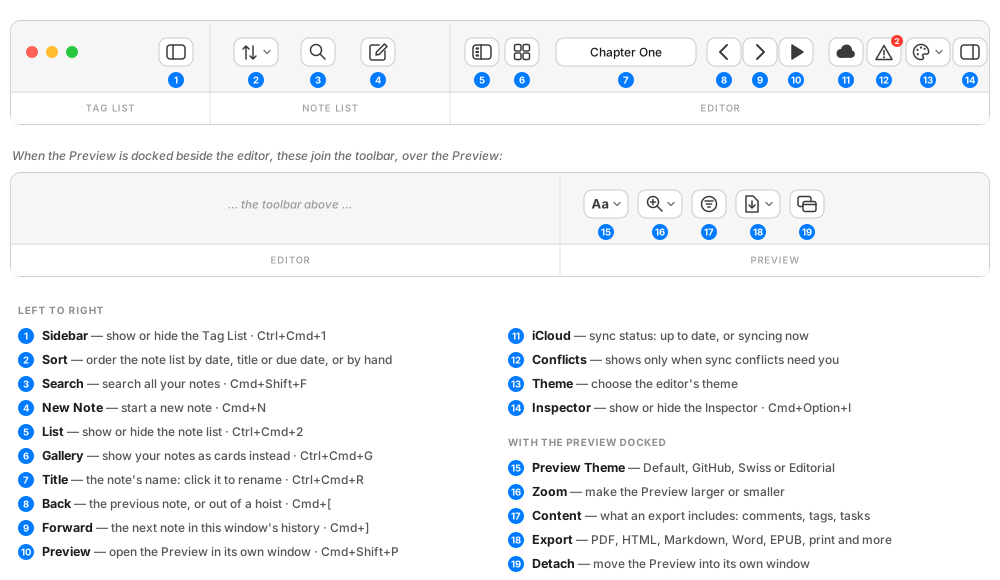
The buttons#
| # | Button | What it does | Menu and shortcut |
|---|---|---|---|
| 1 | Sidebar | Shows or hides the Tag List. | View → Show/Hide Tag List, Ctrl+Cmd+1 |
| 2 | Sort | Orders the note list: Date Modified or Date Created (newest or oldest first), Title (A–Z or Z–A), or Due Date. Manual appears when the list shows a single tag. | View → Sort By |
| 3 | Search | Opens Search All Notes. | Edit → Search All Notes, Cmd+Shift+F |
| 4 | New Note | Starts a new note and opens it. In Favourites the new note is a favourite, in Daily Notes it opens today's daily note, and with an External Files folder selected it asks for a name and makes a file there. | File → New Note, Cmd+N |
| 5 | List | Shows or hides the note list. In the Gallery, it switches back to the list. | View → Show/Hide Note List, Ctrl+Cmd+2 |
| 6 | Gallery | Shows your notes as cards in place of the list. Not available for External Files. | View → Show/Hide Gallery, Ctrl+Cmd+G |
| 7 | Title | The open note's name, orange while it is Untitled. Click it to rename the note. Daily notes and external files keep their names. | File → Rename, Ctrl+Cmd+R |
| 8 | Back | Goes back to the previous note in this window. While you're hoisted, it steps out one level instead. | Navigate → Back, Cmd+[ |
| 9 | Forward | Goes forward again. | Navigate → Forward, Cmd+] |
| 10 | Preview | Opens the Preview in its own window. While the Preview is docked beside the editor, it moves it into its own window. | View → Preview, Cmd+Shift+P |
| 11 | iCloud | Shows sync at a glance: a cloud when everything is up to date, arrows while a sync is in progress. It's a status light, not a button. | — |
| 12 | Conflicts | Appears only when a note changed on two devices at once, with a count. Click it to see them: double-click one to compare the versions, or choose Keep All Mine or Keep All Theirs. Dismiss All puts them aside for later. | — |
| 13 | Theme | Chooses the editor theme. If FoldNotes follows your Mac's light and dark mode, your choice becomes the theme for the mode you're in. | Settings → Appearance |
| 14 | Inspector | Shows or hides the Inspector. | View → Toggle Inspector, Cmd+Option+I |
While a pane is hidden, its button shows the pane's name beside the icon — Tag List, List or Inspector — so you can see at a glance what's closed.
With the Preview Docked#
When the Preview is docked beside the editor (View → Preview Beside Editor, Cmd+Option+Shift+P), the toolbar gains a section over it:
| # | Button | What it does |
|---|---|---|
| 15 | Preview Theme | How the Preview looks: Default (matching the editor), GitHub, Swiss or Editorial. One choice for every Preview. |
| 16 | Zoom | Zoom In, Zoom Out or Actual Size, from 50% to 300% — handy for diagrams and charts. |
| 17 | Content | What an export includes: comments, tags, and how tasks are kept. The Preview itself always shows everything. |
| 18 | Export | Save as PDF, HTML, Markdown, RTF, Word, EPUB, TextBundle or a Bike outline, export for a blog, or print, email or copy the HTML. |
| 19 | Detach | Moves the Preview into its own window. |
The same commands are on the Preview's right-click menu. More about the Preview →
Hiding the Toolbar#
Choose View → Hide Toolbar (Cmd+Option+T) and your note has the window to itself. View → Show Toolbar, or the same keys, brings it back.
With the toolbar hidden, the List button stays in the title bar, beside the window's close, minimise and zoom buttons, so the note list is one click away. While the Inspector is open, a close button (×) sits at its top, beside its tabs, so you can close it with a click. Every other pane button's command is still in the menus (see the table above), and Cmd+Shift+F opens Search at the top of the window.
In full screen the toolbar tucks itself away, and rolls down when you move the pointer to the top of the screen.
Customizing the Toolbar#
Choose View → Customize Toolbar, or right-click the toolbar and choose Customize Toolbar. Drag buttons onto the toolbar, off it, or into a new order, then click Done. FoldNotes remembers your layout.
Resetting the Toolbar#
If the toolbar gets into a muddle, choose View → Reset Toolbar to Default. The standard buttons come back in their usual order, shown as icons.
In a Note's Own Window#
A note opened in its own window (double-click it in the note list, or choose Open in New Window) has a smaller toolbar: Title, Back, Forward, Preview, Search and Inspector. They work as they do in the main window, for that window's note and its own history.