The Tasks View#
New in FoldNotes for Mac 1.3 and for iPhone and iPad 1.6
The Tasks view gathers every task from every note into one place, so you can see what to do today, what's coming, and what's done, without leaving FoldNotes.
The Tasks view collects the tasks from all your notes into six tabs: Inbox, Today, Upcoming, Projects, All and Done. Your tasks stay where you wrote them, in your notes, as plain Markdown. The Tasks view reads them, and every change you make there is written straight back to the task's line in its note.
Your Mac, iPhone, iPad and iPhone Duo all use the same rules, so a task is in the same tab on every device. Only the way you work with it changes from one device to another.
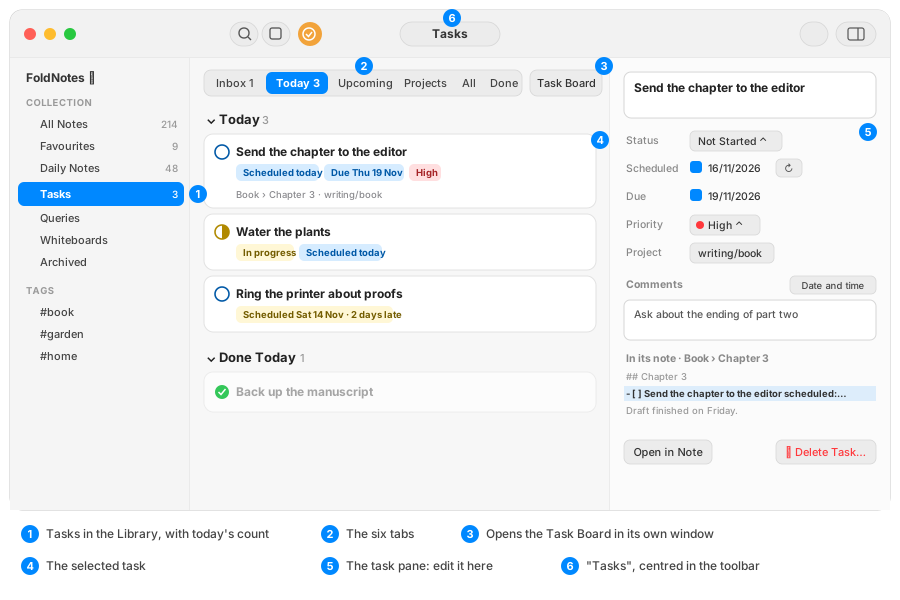
Opening the Tasks View#
- Mac: click Tasks in the Library sidebar. The Tasks view takes the place of the notes list and the editor, and the window's title reads Tasks. Click a note in the sidebar to go back to your notes.
- iPhone and iPad: tap Tasks in the Library. The Tasks view opens full screen; tap ✕ to close it.
- iPhone Duo: the same as the iPhone. Closed, on the front screen, the Tasks view uses the whole screen beside the side bar; open, it works as on an iPad.
The number beside Tasks in the Library is how many tasks are on today's list. It turns red when one of them is overdue.
The Six Tabs#
An open task is one you haven't finished: not started, or in progress.
| Tab | A task is here when it's… | How it's arranged |
|---|---|---|
| Inbox | open, written in a daily note, with no project, no scheduled date and no due date | by day, newest first |
| Today | open, and overdue, due today, scheduled for today, scheduled for an earlier day and not done yet, or in progress | Overdue, then Due Today, then Today, each by priority; then what you've done today, dimmed |
| Upcoming | open, with a scheduled date or due date after today | the next seven days one by one, then a week at a time |
| Projects | open, with a project | under its project, with sub-projects inside their parents |
| All | open, in any note | under the note it's in, with your favourite notes first |
| Done | done or cancelled | by the day you finished it, newest first; older months and years folded; then cancelled tasks |
The numbers on Inbox and Today count their open tasks.
flowchart LR
    A[An open task] --> B{Overdue, due today,<br/>scheduled today or earlier,<br/>or in progress?}
    B -- Yes --> T[Today]
    B -- No --> C{Scheduled or due<br/>after today?}
    C -- Yes --> U[Upcoming]
    C -- No --> D{In a daily note,<br/>no project?}
    D -- Yes --> I[Inbox]
    D -- No --> N[All and<br/>Projects only]
Every open task is also in All, under its note, and in Projects when it has a project.
An in-progress task scheduled for a later day is the one exception to Today: it waits in Upcoming until its day. That's how you put off a task you've started.
Inbox#
The Inbox holds what you jotted down in your daily note and haven't sorted yet. Give a task a project, a scheduled date or a due date and it leaves the Inbox for Projects, Today or Upcoming.
A task you write in any other note stays with that note: you'll find it in All, under the note's name.
Today#
Today shows everything that wants your attention today:
- Overdue: its due date has passed. A task due today becomes overdue at 5 PM.
- Due Today: due today, before 5 PM.
- Today: scheduled for today, scheduled for an earlier day and not done yet, or in progress.
- Done Today: what you've finished today, dimmed, at the bottom.
A task you've started stays on Today until it's done.
Upcoming#
Each task appears once: on its scheduled date, or on its due date if it has no scheduled date. A task with no dates isn't in Upcoming.
Projects#
Every open task with a project, under its project, with sub-projects nested inside their parents. A task without a project isn't here: it's in All, under its note.
All#
Every open task, under the note it lives in. Your favourite notes come first, then the notes you changed most recently, and the tasks of all your daily notes are in one Daily Notes group. A note's heading shows how many of its tasks are overdue or due today. A long note shows its first ten tasks, then a line to show the rest.
Done#
Done tasks, by the day you finished them. This month shows a heading for each day; earlier months and years are folded so the list stays short. Tasks ticked without a date (some imports bring them) and cancelled tasks come last.
Task Cards#
Each task is a card, the same on every device.
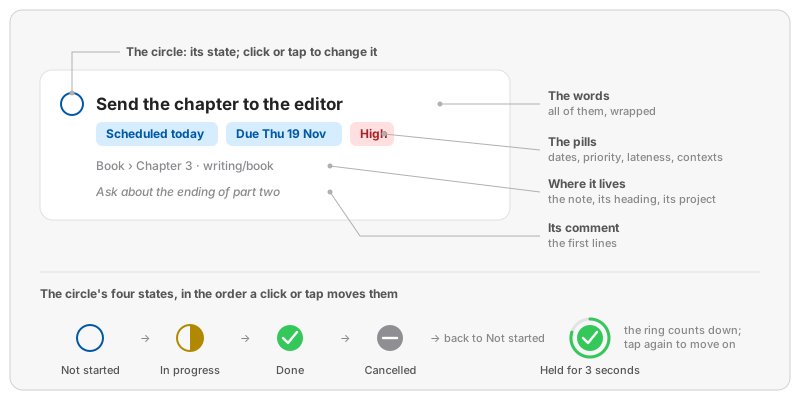
- The circle shows the task's state, and changes it.
- The words are the task as you wrote it, all of them, without the metadata.
- The pills show what's set: the scheduled date (with ↻ for a repeating task), the due date, the priority, how late it is, and its contexts. Each pill's colour means one thing: see Task Colours.
- Where it lives: the note, the heading it's under, and its project.
- The comment: the first lines of the task's comments.
Changing a Task's State#
Click or tap the circle to move the task on, the way a note's checkbox goes: not started, in progress, done, cancelled, and back to not started.
stateDiagram-v2
    direction LR
    NotStarted: Not started  [ ]
    InProgress: In progress  [/]
    Done: Done  [x]
    Cancelled: Cancelled  [-]
    NotStarted --> InProgress
    InProgress --> Done
    Done --> Cancelled
    Cancelled --> NotStarted
The task waits where it is for 3 seconds after each tap, with a ring around the circle counting down, so you can tap again to carry on: tap twice for done, three times for cancelled. When the ring runs out, the change is written to the note and the task moves to where it now belongs.
There are quicker ways too:
- iPhone, iPad and Duo: swipe a task to the right for Done (or Reopen, on a finished one), at once. Swipe to the left for Today, Tomorrow and Edit.
- Every device: the Status menu, in the right-click menu on the Mac or the touch-and-hold menu on iOS, sets a state at once.
Editing a Task#
Click a task to select it. The task pane on the right shows it, ready to edit:
- its words;
- Status, Scheduled and Due, Priority and Project;
- Repeat, beside the scheduled date (see Repeating Tasks);
- its Comments, with a Date and time button that stamps a comment with now (right-click it for another day);
- the lines around the task in its note;
- Open in Note and Delete Task….
Your changes wait as a draft until you click Save, press Enter, or move to another task. Cancel, or Esc, throws them away. The pane shows and hides with the toolbar's Inspector button.
Double-click a task, or press Enter, to open its note at the task.
Tap a task to open its task sheet:
- its words;
- one row of menus: Status, Scheduled (with Repeat in its menu), Due, Priority and Project;
- its Comments, with a Date and time button;
- the lines around the task in its note;
- Open in Note and Delete Task.
Your changes are a draft until you tap Save. Swiping the sheet down, Open in Note, and the app going to the background save them too. Cancel (✕), or Esc on a keyboard, throws them away. On the Duo, ✕ and Save (✓) are in the side bar.
Tap Open in Note to see the task in its note. Back brings you to the Tasks view, as you left it.
The Right-Click and Touch-and-Hold Menu#
Right-click a task on the Mac, or touch and hold it on iOS, for the same menu:
- Open in Note and Edit Task…
- Schedule: Today, Tomorrow, Next Week, or Clear Schedule. This sets the task's scheduled date.
- Due Date: Today, Tomorrow, Next Week, or Clear Due Date.
- Priority and Status.
- Delete Task, last and on its own.
Scheduled Dates and Due Dates#
A task can have two dates:
- Scheduled: the day you mean to work on it (
scheduled:in the note). It decides when the task appears on Today. - Due: its deadline (
due:). It turns the task red once it's overdue, at 5 PM on the due day.
A scheduled date can't be after the due date. If you try, FoldNotes keeps the task as it was and tells you why, for example: "Due Thu 19. Move the due date first." Move a due date earlier than the scheduled date, and the scheduled date comes with it.
Changing Several Tasks at Once (Mac)#
Select several tasks with Cmd-click, Shift-click, or Cmd+A. The task pane then sets Status, Priority, Scheduled and Due for all of them at once: handy for moving everything left on Today to tomorrow.
Adding Tasks#
- iPhone, iPad and Duo: tap the round New Task button.
- Mac: click New Task in the toolbar, or choose File ▸ New Task… (Ctrl+Cmd+N). The same works from the editor, so you can add a task without leaving your writing.
- iPad with a keyboard: Ctrl+Cmd+N.
Type the task and choose its dates, priority and project if you like. From the Today tab, a new task starts scheduled for today. From anywhere else, with nothing chosen, it goes to the Inbox: today's daily note, ready to sort later.
Finding and Folding#
- Find: on the Mac, the Find in tasks field (Cmd+F); on iOS, the magnifier. Find matches a task's words and its comments, in the tab you're in, and the tab counts show what it leaves on show.
- Headings fold: click or tap a heading's chevron to fold it. On iOS, Collapse All and Expand All fold or open every heading in the tab.
Deleting a Task#
Delete takes a task out of its note completely. That's different from Cancel:
- A cancelled task stays in its note, crossed out, and is listed under Done with the cancelled tasks.
- A deleted task is gone: from its note and from every list.
When you delete a task, its comments and anything indented under it go with it. FoldNotes always asks first, and tells you what else will go. You can't undo a delete.
- Mac: select the task and press Del; or right-click it and choose Delete Task…; or click Delete Task… at the bottom of the task pane. Delete works on one task at a time: with several selected, it does nothing.
- iPhone, iPad and Duo: touch and hold the task and choose Delete Task; or open it and tap Delete Task at the bottom of the sheet.
For a repeating task, the warning also offers Skip This One. See Repeating Tasks.
Repeating Tasks in the Tasks View#
When you tick a repeating task, FoldNotes adds the next one to the same note, with its dates moved on. A repeating task's Scheduled pill shows the repeat symbol, ↻, in place of the calendar, so you can tell it will come round again.
For a few seconds after you tick it, or cancel it, the card says what happened: Done · next one Mon 23 Nov, in green, or Cancelled · next one Mon 23 Nov, in grey. Where it shows depends on the tab:
- Today: the one you ticked moves down to Done Today, and says when the next one is. The next one is in Upcoming, on its day.
- All and Projects: these list open tasks, so the one you ticked leaves, and the next one takes its place, under the same note or project. The words show on the next one's card, so you can see your tick worked; its ↻ Scheduled pill shows the new date.
Mac, iPhone, iPad and Duo#
The rules are the same everywhere; this is what differs:
| Mac | iPhone | iPad | iPhone Duo | |
|---|---|---|---|---|
| Opens | in the main window, beside the sidebar | full screen | full screen | full screen; closed, beside the side bar |
| Editing a task | the task pane, on the right | the task sheet | the task sheet, centred | the task sheet; ✕ and Save in the side bar |
| Several at once | Cmd+A, Cmd-click, Shift-click | — | — | — |
| Status | circle, menu | circle, swipe, menu | circle, swipe, menu | circle, swipe, menu |
| New Task | toolbar, Ctrl+Cmd+N | round button | round button, Ctrl+Cmd+N | round button |
| Delete | Del, menu, pane | menu, sheet | menu, sheet | menu, sheet |
| Fold all headings | — | Collapse All, Expand All | Collapse All, Expand All | in the side bar |
| Task Board | Task Board button | — | — | — |
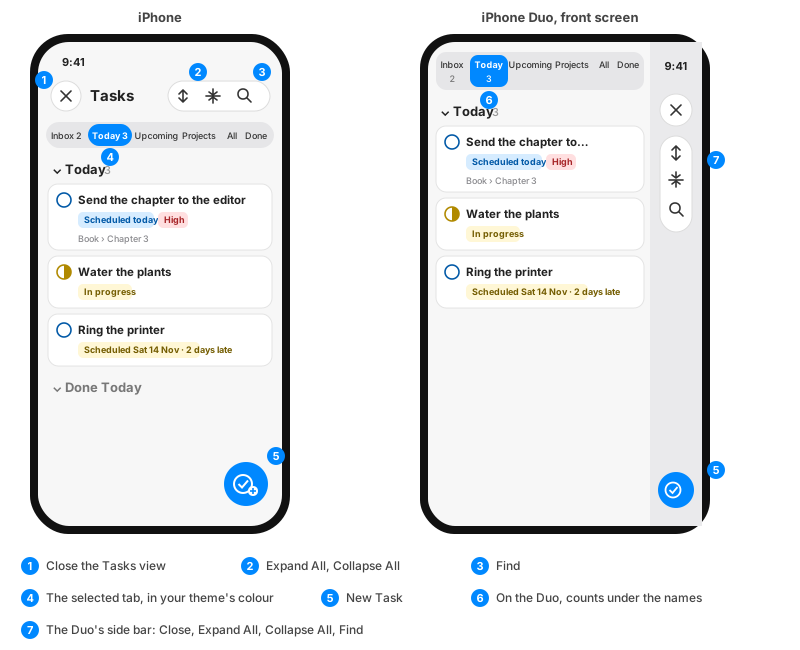
On the Duo's front screen, the tabs sit in one row with their counts under the names, the side bar holds Close, Expand All, Collapse All and Find, and the round New Task button sits below it. The selected tab is filled in your theme's colour on every iPhone, iPad and Duo.
The Tasks View and the Task Board#
On the Mac, the Task Board button at the top right of the Tasks view opens the Task Board in its own window: a kanban board of the same tasks, with columns you drag cards between, a Week view for scheduling, and a calendar. Keep it open beside your notes on a big screen.
Related#
- Tasks: writing tasks in your notes, and their metadata.
- Repeating Tasks
- Task Colours
- Task Board (Mac)
- Projects